
Few things derail a productive workday or a relaxing movie night faster than a sluggish internet connection. If you are dealing with endless buffering wheels, dropped video calls, or dead zones in the back bedroom, learning how to get faster home Wi-Fi can transform your daily digital routine. You often do not need an expensive internet plan upgrade to fix these issues; simple adjustments to your current hardware and network settings can deliver an immediate speed boost.
Advertisements
Find the Ideal Physical Location for Your Router
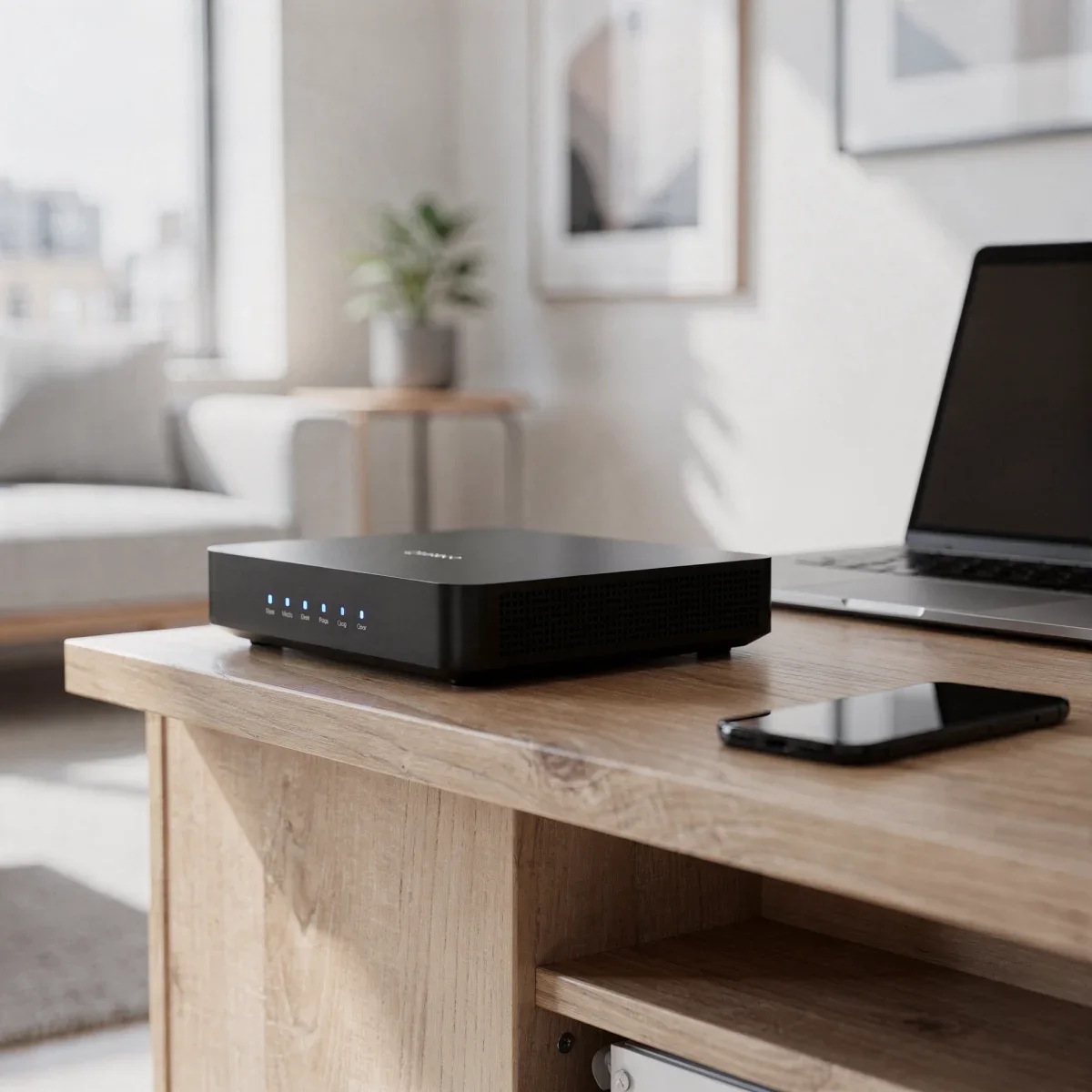
The physical placement of your wireless router plays the single biggest role in your signal quality. Wi-Fi radio waves travel outward and downward in an omnidirectional pattern, meaning that tucking your router inside a cabinet, behind the television, or on the floor cuts your broadcast efficiency in half before the signal even reaches your devices.
To maximize coverage across your living space, follow these core positioning guidelines:
- Center the router in your home: Place the unit in a central room rather than tucked away in a corner office or basement.
- Elevate the device: Mount the router on a wall or place it atop a sturdy bookshelf or console table at roughly chest-to-eye level (around 4 to 5 feet high).
- Avoid dense obstacles: Solid brick, concrete, plaster walls, metal framing, and large mirrors reflect or absorb radio frequencies dramatically.
- Eliminate appliance interference: Keep the router at least 4 to 6 feet away from microwave ovens, cordless home phones, baby monitors, and large metal appliances like refrigerators.
Switch to 5 GHz or 6 GHz Frequency Bands
Most modern routers are dual-band or tri-band devices, broadcasting signals across multiple frequencies: 2.4 GHz, 5 GHz, and on newer Wi-Fi 6E and Wi-Fi 7 models, 6 GHz. Understanding which band your gadgets connect to makes a noticeable difference in speed and consistency.
The 2.4 GHz band covers longer distances and penetrates walls well, but it tops out at lower speeds and suffers from heavy congestion from neighbor networks and household electronics. In contrast, the 5 GHz band delivers significantly higher data transfer rates with lower latency, making it the superior choice for 4K streaming, gaming consoles, and work laptops located in the same or adjacent rooms.
If your router broadcasts separate network names (SSIDs) for each band, manually connect your high-demand devices to the 5 GHz network. If your router uses a single combined SSID with automatic band steering, check your router settings via its mobile app or web portal to ensure band steering is functioning properly.
Update Firmware and Secure Your Network
Router manufacturers regularly release software updates that patch security vulnerabilities, optimize signal processing algorithms, and improve general stability. An outdated router can slow down over time as connection protocols evolve.
Log in to your router admin panel (commonly accessed by entering 192.168.1.1 or 192.168.0.1 into your web browser) or open your brand companion app (such as Netgear Nighthawk, Asus Router, or TP-Link Tether). Look for the Firmware Update tab and install any available updates. Many modern routers support automatic updates; enable this feature so you never miss a critical performance patch.
While inside the dashboard, verify your network security:
- Use WPA3 encryption if supported by all your household hardware, or WPA2-AES as a reliable standard.
- Change the default administrative password from "admin" to a strong, unique passphrase.
- Review the connected devices list and remove unfamiliar hardware or old smart home accessories you no longer use.
Change Wi-Fi Channels and Switch DNS Providers
If you live in an apartment complex, condo, or dense suburban neighborhood, dozens of nearby routers are competing for the same wireless channels. This causes interference that slows down your data traffic.
By default, many routers automatically pick a channel, but they often choose the same crowded default (such as channels 1, 6, or 11 on the 2.4 GHz band). You can use free network analyzer apps on your smartphone or laptop to scan nearby signals and identify the least congested channel. Once identified, log in to your router settings and manually assign your network to that clearer frequency.
Additionally, your internet service provider (ISP) default Domain Name System (DNS) server might be slow or prone to momentary outages. Switching to a fast, public DNS service can speed up website loading times across all connected devices:
| DNS Provider | Primary DNS | Secondary DNS | Key Benefit |
|---|---|---|---|
| Cloudflare | 1.1.1.1 | 1.0.0.1 | Fastest resolution, strict privacy |
| Google Public DNS | 8.8.8.8 | 8.8.4.4 | High reliability, global infrastructure |
| Quad9 | 9.9.9.9 | 149.112.112.112 | Built-in malicious domain blocking |
Know When to Upgrade: Mesh Systems vs. Extenders
If your home exceeds 2,000 square feet, has multiple floors, or features dense building materials like brick or stone, a single standalone router might simply lack the physical broadcast range to cover every room. In these scenarios, expanding your hardware footprint is the most effective path to faster home Wi-Fi.
Traditional plug-in Wi-Fi extenders create a separate secondary network and often cut your available bandwidth in half. Instead, a whole-home mesh Wi-Fi system (such as Amazon eero, Google Nest Wifi, or TP-Link Deco, widely available at retailers like Best Buy and Amazon) uses multiple coordinated access points. A mesh network broadcasts a single seamless network name across your entire property, allowing your phone or tablet to roam from room to room without dropping the connection.
Quick Takeaways
- Positioning matters most: Keep your router elevated, centrally located, and clear of dense walls or major metal appliances.
- Use the right band: Connect high-bandwidth devices (TVs, gaming systems, PCs) to the 5 GHz band for faster throughput and lower latency.
- Optimize settings: Update your router firmware, switch to public DNS servers (like 1.1.1.1), and consider a mesh setup if your home is over 2,000 square feet.
Frequently Asked Questions
How often should I reboot my wireless router?
Rebooting your router once every month clears its short-term memory (RAM), resets active connection tables, and allows the device to automatically select clearer wireless channels. Many modern routers let you schedule automatic weekly reboots via their mobile app.
Why is my Wi-Fi speed slower than what I pay for?
Wireless speeds are naturally lower than direct wired connections due to distance, physical walls, radio interference, and device hardware limits. Test your speed with an Ethernet cable first to verify if the issue is your ISP or your wireless setup.
Are Wi-Fi range extenders worth buying?
Basic Wi-Fi extenders can help reach a single outdoor camera or detached shed on a budget, but they typically cut connection speeds in half. For whole-home coverage and seamless roaming, a dedicated mesh Wi-Fi system is a much better investment.
Next Steps to Maximize Your Speed
Achieving faster home Wi-Fi does not require an advanced degree in networking—just deliberate placement, clean frequency channels, and up-to-date hardware. Start by relocating your router to a central, elevated shelf today and switching your daily work devices to the 5 GHz band. If you continue experiencing dead spots in larger spaces, check out our companion guide on choosing the best mesh network system for your home layout.