
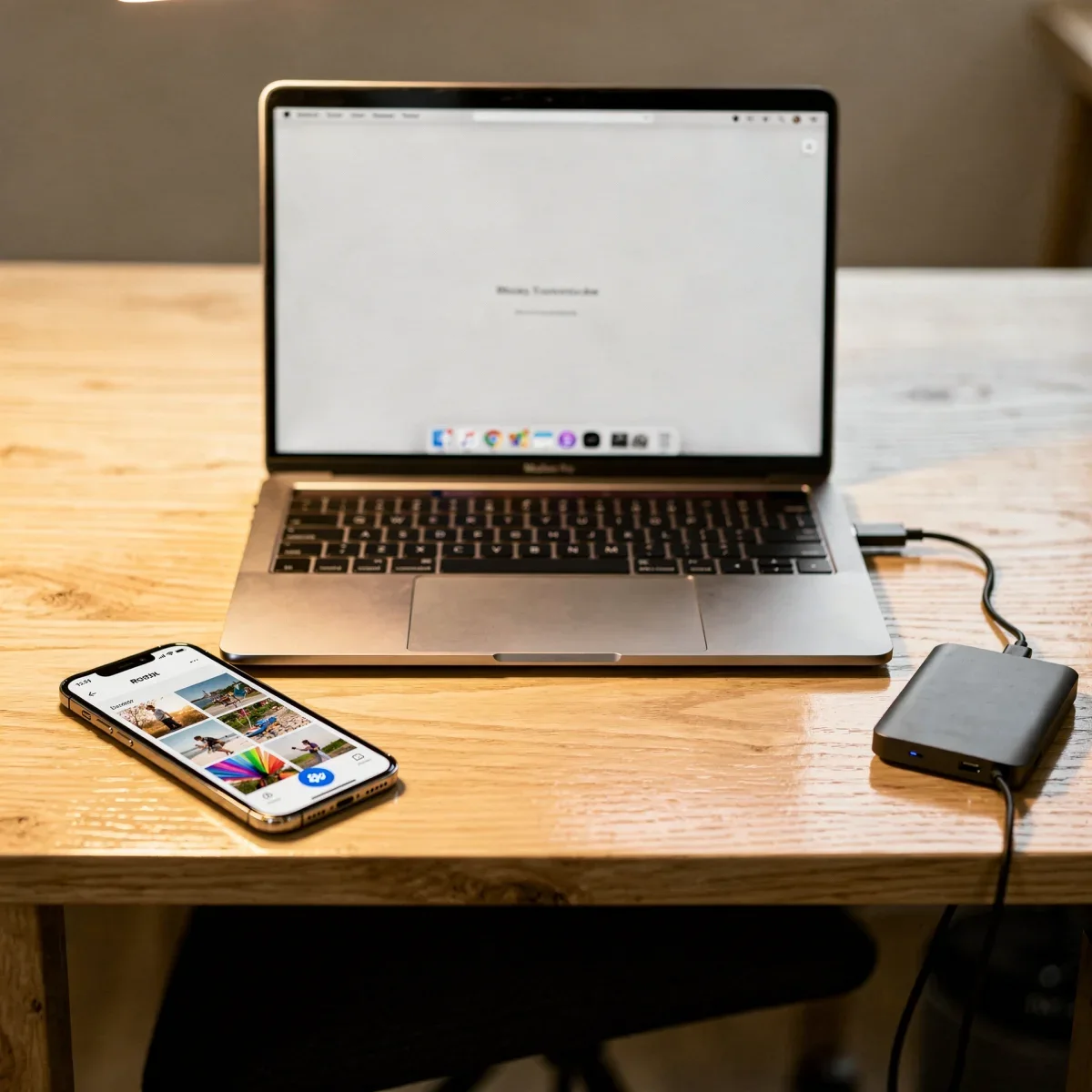
Losing years of family pictures, tax records, or work projects due to a spilled cup of coffee or a stolen phone is a nightmare nobody wants to experience. Fortunately, learning how to back up your photos and digital documents has never been simpler or more affordable. With modern automated tools and smart storage habits, you can protect everything that matters in just an afternoon.
Advertisements
Many people delay creating a reliable backup routine because it feels overwhelming, technical, or expensive. In reality, the best backup strategy is the one that runs quietly in the background without requiring daily manual effort. This guide breaks down the most effective methods to secure your data across phones, laptops, and tablets so you never have to worry about sudden digital disasters again.
The Golden Rule: Understanding the 3-2-1 Backup Strategy
Data recovery professionals frequently recommend the classic 3-2-1 backup strategy. While the name sounds technical, the underlying concept is straightforward and provides ironclad protection against hardware failure, accidental deletion, ransomware, and physical disasters.
- 3 Copies of Your Data: Keep your primary working file plus at least two independent backup copies.
- 2 Different Media Types: Store those copies on two distinct formats, such as your computer's internal storage and a dedicated external solid-state drive (SSD).
- 1 Off-Site Location: Keep at least one copy in a separate physical location, which is easiest to achieve by using secure cloud storage.
By following this framework, if your laptop crashes, you still have your local external drive. If a house fire or theft occurs, your off-site cloud backup keeps your memories and paperwork intact.
Automating Cloud Backups for Phones and Tablets
Smartphones carry our most personal daily data, from candid family snapshots to travel tickets and notes. Because mobile devices are frequently dropped, lost, or replaced, automated cloud syncing is your first line of defense.
For iPhone and iPad Users
Apple makes photo and device backups nearly seamless through iCloud. When enabled, your device automatically uploads full-resolution photos, app data, settings, and messages whenever you are connected to Wi-Fi and charging.
- Open Settings on your iOS device.
- Tap your name at the top, then select iCloud.
- Under Saved to iCloud, tap Photos and toggle on Sync this iPhone.
- Return to the main iCloud menu, tap iCloud Backup, and ensure Back Up This iPhone is switched on.
Apple includes 5GB of free storage, which fills up quickly. Upgrading to iCloud+ gives you 50GB for $0.99 per month, 200GB for $2.99 per month, or 2TB for $9.99 per month, which can also be shared with family members.
For Android and Multi-Platform Users
Google Photos and Google Drive offer exceptional automated syncing for both Android and iPhone users. Google gives every account 15GB of free shared storage across Gmail, Drive, and Photos.
- Download and open the Google Photos app.
- Tap your profile icon in the top right corner.
- Select Photos settings and tap Backup.
- Toggle the backup switch to on and choose your preferred upload quality.
If you need more space, Google One plans start at $1.99 per month for 100GB or $9.99 per month for 2TB. The automated face grouping, search tools, and cross-device availability make it one of the most versatile platforms for keeping image libraries safe.
Setting Up Local Backups on Mac and Windows PC
While the cloud is convenient for quick restores, having a physical local backup allows you to recover hundreds of gigabytes of data in minutes rather than waiting hours for internet downloads.
| Storage Option | Best For | Speed | Approximate Price Range |
|---|---|---|---|
| Portable External SSD | Laptops, daily physical backups, travel | Very Fast (500–1050 MB/s) | $70 – $160 for 1TB to 2TB |
| Desktop External HDD | Large desktop archives, full disk images | Moderate (120–200 MB/s) | $60 – $130 for 2TB to 5TB |
| Cloud Backup Service | Off-site disaster recovery, set-and-forget | Internet Dependent | $7 – $10 / month (Unlimited) |
Automatic Backups on Mac with Time Machine
macOS includes Time Machine, one of the easiest local backup tools available. When you connect an external drive, Time Machine automatically creates hourly backups for the past 24 hours, daily backups for the past month, and weekly backups for previous months.
- Connect an external USB-C or USB-A drive to your Mac.
- Open System Settings and click General in the sidebar.
- Select Time Machine, then click Add Backup Disk.
- Select your connected drive and follow the on-screen prompts to encrypt and begin backing up.
Automatic Backups on Windows with File History and System Image
Windows offers built-in tools to preserve your personal directories automatically whenever an external drive is plugged into your PC.
- Connect your external storage drive to your Windows computer.
- Open the Start Menu, search for File History, and select it.
- Click Select drive and choose your connected external hard drive or SSD.
- Turn on File History to automatically save copies of files from your Desktop, Documents, Pictures, and Music folders.
Complete Computer Off-Site Backups
Standard cloud sync folders like Dropbox, Microsoft OneDrive, and Google Drive are excellent for working files, but they are not true system backup solutions. If you accidentally delete a file in a synced folder, that deletion often syncs across all your devices.
For genuine full-computer protection, dedicated continuous cloud backup services like Backblaze or Carbonite are ideal. These programs run quietly in the background, uploading every document, photo, video, and folder on your computer and attached external hard drives to secure off-site servers for a flat monthly or annual fee.
Common Backup Mistakes to Avoid
Setting up your system takes minimal time, but avoiding these common pitfalls will ensure your files remain recoverable when you need them most:
- Relying on a Single USB Flash Drive: Small flash drives are easily lost, prone to memory controller failure, and unsuitable for long-term archiving.
- Never Testing Your Backups: At least twice a year, attempt to restore a few random photos or documents to verify your drives and cloud accounts are functioning correctly.
- Ignoring Drive Disconnection Warnings: Always safely eject external drives before unplugging them to prevent file system corruption.
- Leaving Backup Drives Permanently Plugged In: While convenient, keeping a drive connected constantly makes it vulnerable to power surges or ransomware infections that target attached storage.
How to Organize Your Files Before You Back Up
Backing up a cluttered digital library copies unnecessary duplicates and wastes valuable storage space. Taking thirty minutes to organize your data before initiating a major backup will make future file recovery much faster.
- Delete Obvious Duplicates: Use built-in duplicate detection in Apple Photos or Google Photos to merge near-identical shots.
- Create a Logical Folder Structure: Organize documents by year and category (for example, Documents > Taxes > 2026).
- Clear Out Downloads: Empty temporary files from your browser downloads folder that you no longer need.
Quick Takeaways
- Follow the 3-2-1 rule: retain three copies of essential data on two different types of media with at least one off-site copy.
- Enable automated phone backup using iCloud or Google Photos so daily captures are protected without manual file transfers.
- Pair an external SSD or desktop hard drive with macOS Time Machine or Windows File History for instant local recovery.
Frequently Asked Questions
Is cloud storage safe for private personal photos?
Major cloud providers use strong enterprise-grade encryption during transit and storage. For extra protection, enable two-factor authentication on your Apple, Google, or Microsoft account to prevent unauthorized access.
What is the difference between syncing and backing up?
Syncing mirrors files across devices, meaning if you edit or delete a file in one spot, it vanishes everywhere. A true backup preserves historical copies independently of your main device.
How often should I back up my computer?
Automate cloud syncing to run continuously or daily. For physical external drives, connect them at least once a week to capture recent documents, photo edits, and downloaded receipts.
Protect Your Digital Life Today
Safeguarding your irreplaceable digital memories and critical records does not require advanced tech skills. By taking advantage of built-in phone automation, connecting an external drive, and choosing a trusted cloud service, you can rest easy knowing your files are secure. Take ten minutes today to check your phone backup settings and establish a routine that protects what matters most.